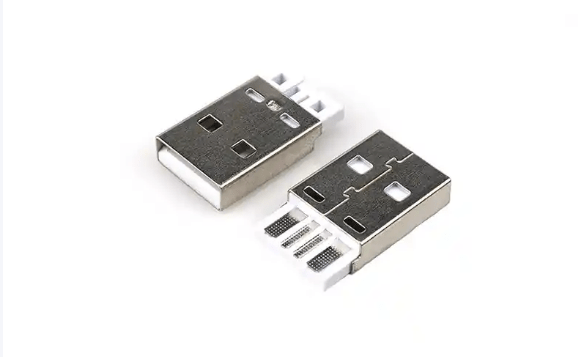
I. Basic Definition and Development History
USB (Universal Serial Bus) Type-A is the most common USB interface type, belonging to the physical interface form of the first-generation USB standard. It was first introduced with the USB 1.0 standard (1996) and remains one of the most widely used interfaces today. Its design goal is to provide a universal connection for devices, supporting data transmission and power supply.
II. Physical Structure and Pin Definition of the Interface
1. Appearance and Dimensions
- Shape: Rectangular. When facing upward, the interface is trapezoidal (wider at the top and narrower at the bottom), making it easy for users to identify the insertion direction.
- Dimensions: The standard Type-A interface is approximately 12.5mm long, 4.5mm wide, and 1.7mm thick, divided into “standard”, “mini”, and “micro” versions. However, the standard version is currently the mainstream (mini and micro versions have gradually been phased out).
2. Pin Definition (Standard Type-A Interface, 4-pin design)
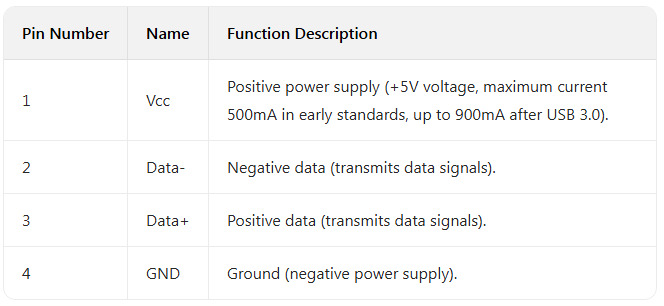
3. Upgrades for USB 3.0/3.1 Type-A Interfaces
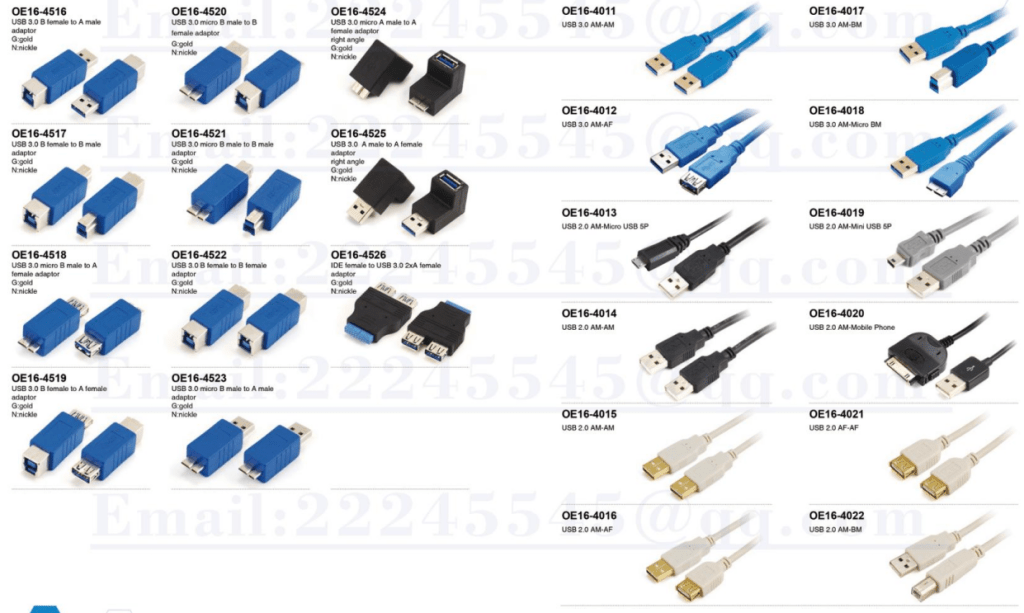
- Pin Expansion: USB 3.0 and above Type-A interfaces add 5 pins inside (located at the bottom of the interface with an “SS” logo) based on the original 4 pins for high-speed data transmission (e.g., SuperSpeed mode).
- Functions of New Pins: Including TX+, TX-, RX+, RX- (high-speed data transmission) and GND (ground), supporting transmission rates of up to 10Gbps (USB 3.2 Gen 2).
III. Data Transmission and Power Supply Capabilities
1. Data Transmission Rate
- USB 1.1: Low-speed (1.5Mbps) and full-speed (12Mbps), suitable for low-bandwidth devices such as keyboards and mice.
- USB 2.0: High-speed (480Mbps), supporting devices like USB flash drives and external hard drives.
- USB 3.0/3.1/3.2: SuperSpeed series, increasing from 5Gbps (USB 3.0) to 10Gbps (USB 3.2 Gen 2) and even 20Gbps (USB 3.2 Gen 2×2), adapting to scenarios such as high-speed external hard drives and video transmission.
2. Power Supply Capability
- USB 2.0 and below: Standard voltage 5V, maximum current 500mA (power 2.5W).
- USB 3.0 and above: Maximum current 900mA (power 4.5W), and some devices can support 1.5A (7.5W) through the “BC 1.2 charging protocol”.
- USB PD (Power Delivery) Protocol: If the Type-A interface is compatible with PD, it can support higher power (such as 18W, 30W, or even 65W charging through an adapter), but both the device and cable need to be supported.
IV. Application Scenarios and Device Types
- Host-side Interfaces: Commonly found in computers (desktops, laptops), routers, chargers, etc., for connecting external devices.
- Peripheral-side Interfaces: Plugs for devices such as USB flash drives, external hard drives, keyboards, mice, printers, and card readers.
- Chargers and Power Adapters: Traditional phone chargers, power banks, etc., often use Type-A interfaces for power output (but gradually replaced by Type-C in recent years).
VI. Advantages, Disadvantages and Development Trends
1. Advantages
- Strong Compatibility: Supports the full range of standards from USB 1.0 to USB 3.2, and is compatible with almost all computers and peripherals.
- Low Cost: Simple structure, low manufacturing threshold, and cheap cables and interfaces.
2. Disadvantages
- Non-reversible: Direction needs to be distinguished, and insertion is inconvenient (especially easy to damage the interface when plugging blindly).
- Larger Volume: Occupies more space than Type-C, not suitable for ultra-thin devices.
- Functional Limitations: Does not support native video output (such as DisplayPort), and has higher power consumption at high speeds.
3. Development Trends
- Gradual Replacement by Type-C: With the popularity of USB4 and PD protocols, Type-C has become the mainstream in devices such as phones and laptops due to its support for reversibility, high speed, and high power.
- Retention in Traditional Devices: Type-A is still widely used in low-power peripherals such as chargers, USB flash drives, and keyboards, and will not be completely phased out in the short term.
VII. Usage Notes
- Insertion Direction: The standard Type-A interface needs to be inserted into the host with the “metal contacts facing up” (some device interfaces have marks), avoiding forced reverse insertion to prevent pin bending.
- Cable Specifications: USB 3.0 and above Type-A interfaces need to be matched with corresponding cables (usually blue plugs or “SS” logos), otherwise high-speed transmission cannot be achieved.
- Power Supply Safety: When using non-standard chargers, pay attention to the interface power limit to avoid overcurrent damage to devices.












Leave a comment