USB Tethering
Definition: USB tethering is a networking feature that shares a mobile device’s (smartphone, tablet, or portable modem) cellular data connection with another device (laptop, desktop, or IoT gadget) via a physical USB cable. Unlike mobile hotspots (which use Wi-Fi for wireless sharing), USB tethering relies on a wired connection to establish an internet link, offering a more stable, secure, and power-efficient alternative for data sharing.
Core Working Principle
USB tethering leverages the USB data transfer protocol and the mobile device’s cellular modem to create a direct network bridge between two devices:
- When a mobile device is connected to a host device (e.g., laptop) via a USB cable and tethering is enabled, the mobile device acts as a USB network adapter.
- The mobile device routes internet traffic from its cellular network (4G LTE/5G) to the host device through the USB cable.
- The host device recognizes the mobile device as a network interface and configures its internet connection automatically (via DHCP, Dynamic Host Configuration Protocol) in most cases.
- Data is transmitted bidirectionally: the host device sends requests to the mobile device, which forwards them to the cellular network; the cellular network sends responses back to the mobile device, which relays them to the host device.
Key Differences: USB Tethering vs. Mobile Hotspot vs. Bluetooth Tethering
| Feature | USB Tethering | Mobile Hotspot (Wi-Fi) | Bluetooth Tethering |
|---|---|---|---|
| Connection Type | Wired (USB cable) | Wireless (Wi-Fi) | Wireless (Bluetooth) |
| Speed | Fast (up to 1 Gbps, limited by cellular data and USB version) | Fast (up to 1 Gbps, but subject to Wi-Fi interference) | Slow (max 3 Mbps, ideal for light use only) |
| Stability | High (no signal interference, low latency) | Medium (prone to Wi-Fi congestion and signal drops) | Low (susceptible to Bluetooth interference) |
| Security | High (wired connection, no unauthorized access) | Medium (requires password, but vulnerable to Wi-Fi hacking) | Low (weak encryption standards) |
| Power Consumption | Low (host device can charge the mobile device via USB) | High (Wi-Fi broadcasting drains battery quickly) | Medium (lower than Wi-Fi, but higher than USB) |
| Device Support | 1 device per USB cable | 5–30 devices (varies by mobile device) | 1 device at a time |
| Setup Complexity | Simple (plug-and-play in most cases) | Simple (enable hotspot, connect via Wi-Fi) | Moderate (pairing required, limited speed) |
Requirements for USB Tethering
- Compatible Mobile Device: Most modern smartphones and tablets (iOS/Android) support USB tethering. Note that iOS devices require additional software (e.g., iTunes or Finder on macOS, third-party tools on Windows) for tethering, while Android devices are typically plug-and-play.
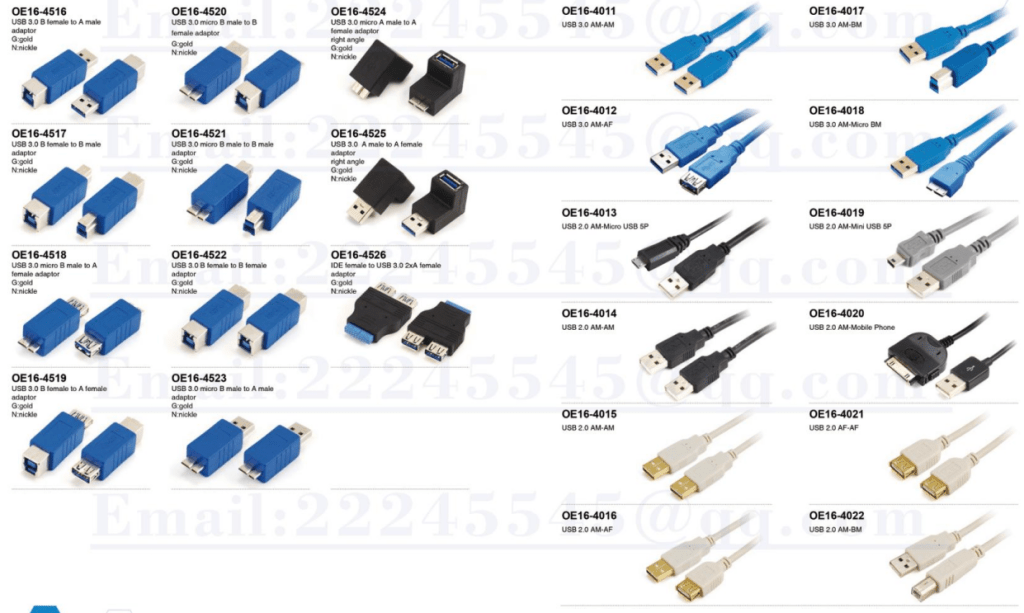
- USB Cable: A functional USB cable (USB-C, Lightning, or Micro-USB) that supports both data transfer and charging. Charge-only cables will not work for tethering.
- Cellular Data Plan: The mobile device must have an active cellular data plan, and the carrier must allow tethering (some carriers restrict tethering or charge extra fees for it).
- Host Device: A laptop, desktop, or IoT device with a USB port and compatible operating system (Windows, macOS, Linux, ChromeOS).
Step-by-Step Setup Guide
For Android Devices
- Connect your Android device to the host device (e.g., laptop) using a USB data cable.
- On the Android device, go to Settings > Network & Internet > Hotspot & Tethering (the exact path may vary by brand, e.g., Samsung uses Settings > Connections > Mobile Hotspot and Tethering).
- Toggle on the USB Tethering switch.
- The host device will automatically detect the network connection. If not, manually configure the network interface (rare for modern OSes).
- Verify the connection by opening a web browser on the host device and accessing a website.
For iOS Devices (iPhone/iPad)
- Install iTunes (Windows) or use Finder (macOS) on the host device (required for driver recognition).
- Connect your iOS device to the host device using a Lightning-to-USB cable.
- On the iOS device, go to Settings > Cellular > Personal Hotspot and toggle it on.
- Check the box labeled Allow USB Tethering (appears automatically when the device is connected to a host).
- The host device will establish the connection automatically. On Windows, the connection may appear as a “Local Area Connection” in Network Settings.
For Linux Devices
- Connect the Android device to the Linux host via USB cable and enable USB tethering on the phone.
- Open the terminal and run
ip addrto check if a new network interface (e.g.,enp0s20f0u1) is detected. - If the interface is not assigned an IP address automatically, run
dhclient <interface-name>to request an IP via DHCP. - Test the connection with
ping google.com.
Common Use Cases
- Remote Work & Travel: Access the internet on a laptop when public Wi-Fi is insecure or unavailable (e.g., airports, cafes, or rural areas with no broadband). USB tethering’s stability makes it ideal for video calls and large file downloads.
- Device Charging + Internet Sharing: The host device can charge the mobile device while using its data connection—critical for extended use (e.g., working from a car or outdoor location with no power outlet).
- IoT Device Connectivity: Provide internet access to IoT devices (e.g., single-board computers like Raspberry Pi) that lack built-in cellular modems, using a smartphone as a USB network adapter.
- Gaming Consoles: Connect gaming consoles (e.g., PlayStation, Xbox) to the internet via a smartphone’s USB tethering (if the console lacks Wi-Fi or the Wi-Fi signal is weak).
- Network Troubleshooting: Use USB tethering as a backup internet source to diagnose issues with a home broadband connection (e.g., testing if a problem is with the router or the ISP).
Advantages of USB Tethering
- Stable & Low-Latency Connection: Wired transmission eliminates Wi-Fi interference and signal drops, making it ideal for latency-sensitive tasks (video conferencing, online gaming, real-time data transfer).
- Enhanced Security: Unlike Wi-Fi hotspots, USB tethering cannot be accessed by unauthorized devices—only the device physically connected via USB can use the data connection, reducing the risk of hacking.
- Power Efficiency: The host device can charge the mobile device during tethering, whereas Wi-Fi hotspots rapidly drain the phone’s battery. This is a key advantage for long-duration use.
- Plug-and-Play Convenience: No need to configure Wi-Fi passwords or Bluetooth pairing—most systems recognize the connection automatically.
- Faster Speeds Than Bluetooth: USB tethering supports much higher data transfer speeds than Bluetooth, matching or exceeding Wi-Fi hotspot speeds in interference-free environments.
Limitations & Troubleshooting Tips
Limitations
- Single-Device Support: Only one host device can be connected at a time (unlike Wi-Fi hotspots, which support multiple devices).
- Carrier Restrictions: Some cellular carriers block USB tethering or throttle speeds for tethered connections. Check your plan terms before using tethering extensively.
- Cable Dependency: The connection is limited by the USB cable length, reducing mobility compared to wireless hotspots.
- iOS Limitations: iOS requires iTunes/Finder for tethering on non-Apple hosts, and some older Windows versions may need additional drivers.
Common Troubleshooting Tips
- Tethering Not Detected: Use a data-transfer USB cable (not charge-only). Reinstall USB drivers on the host device or restart both the mobile and host devices.
- Slow Connection: Check cellular signal strength (move to an area with better coverage). Ensure the carrier is not throttling tethering speeds.
- Carrier Blocking: Contact your carrier to confirm that tethering is allowed on your plan. Some carriers require a paid tethering add-on.
- No Internet Access: Verify that cellular data is enabled on the mobile device. Toggle USB tethering off and on, or reset the mobile device’s network settings.
Future Trends
AI-Powered Optimization: Mobile OSes will use AI to prioritize tethering traffic, reduce latency, and optimize power usage for extended wired data sharing.
USB 4 & Thunderbolt Support: Next-gen USB standards (USB 4, Thunderbolt 4) will enable even faster tethering speeds, matching or surpassing 5G cellular data rates.
eSIM Integration: Mobile devices with eSIMs will simplify tethering for international travel, allowing users to switch between local data plans without physical SIM cards.
- High-Performance Waterproof Solar Connectors
- Durable IP68 Waterproof Solar Connectors for Outdoor Use
- High-Quality Tinned Copper Material for Durability
- High-Quality Tinned Copper Material for Long Service Life
- Y Branch Parallel Solar Connector for Enhanced Power
- 10AWG Tinned Copper Solar Battery Cables
- NEMA 5-15P to Powercon Extension Cable Overview
- Dual Port USB 3.0 Adapter for Optimal Speed
- 4-Pin XLR Connector: Reliable Audio Transmission
- 4mm Banana to 2mm Pin Connector: Your Audio Solution
- 12GB/s Mini SAS to U.2 NVMe Cable for Fast Data Transfer
- CAB-STK-E Stacking Cable: 40Gbps Performance
- High-Performance CAB-STK-E Stacking Cable Explained
- Best 10M OS2 LC to LC Fiber Patch Cable for Data Centers
- Mini SAS HD Cable: Boost Data Transfer at 12 Gbps
- Multi Rate SFP+: Enhance Your Network Speed
- Best 6.35mm to MIDI Din Cable for Clear Sound
- 15 Pin SATA Power Splitter: Solutions for Your Device Needs
- 9-Pin S-Video Cable: Enhance Your Viewing Experience
- USB 9-Pin to Standard USB 2.0 Adapter: Easy Connection
- 3 Pin to 4 Pin Fan Adapter: Optimize Your PC Cooling
- S-Video to RCA Cable: High-Definition Connections Made Easy
- 6.35mm TS Extension Cable: High-Quality Sound Solution
- BlackBerry Curve 9360: Key Features and Specs












 Ruigu Electronic
Leave a comment